Showing posts with label Tips and Tricks. Show all posts

Sunday, August 7, 2016

How to get free Amazon delivery?[Without Prime]

This is a very simple hack one can use to get free Amazon deliveries.
Amazon India allows free delivery above ₹500 but what is your cart value is less all you need to do

Steps

  1. Select product you want to buy it should be Amazon fulfilled.

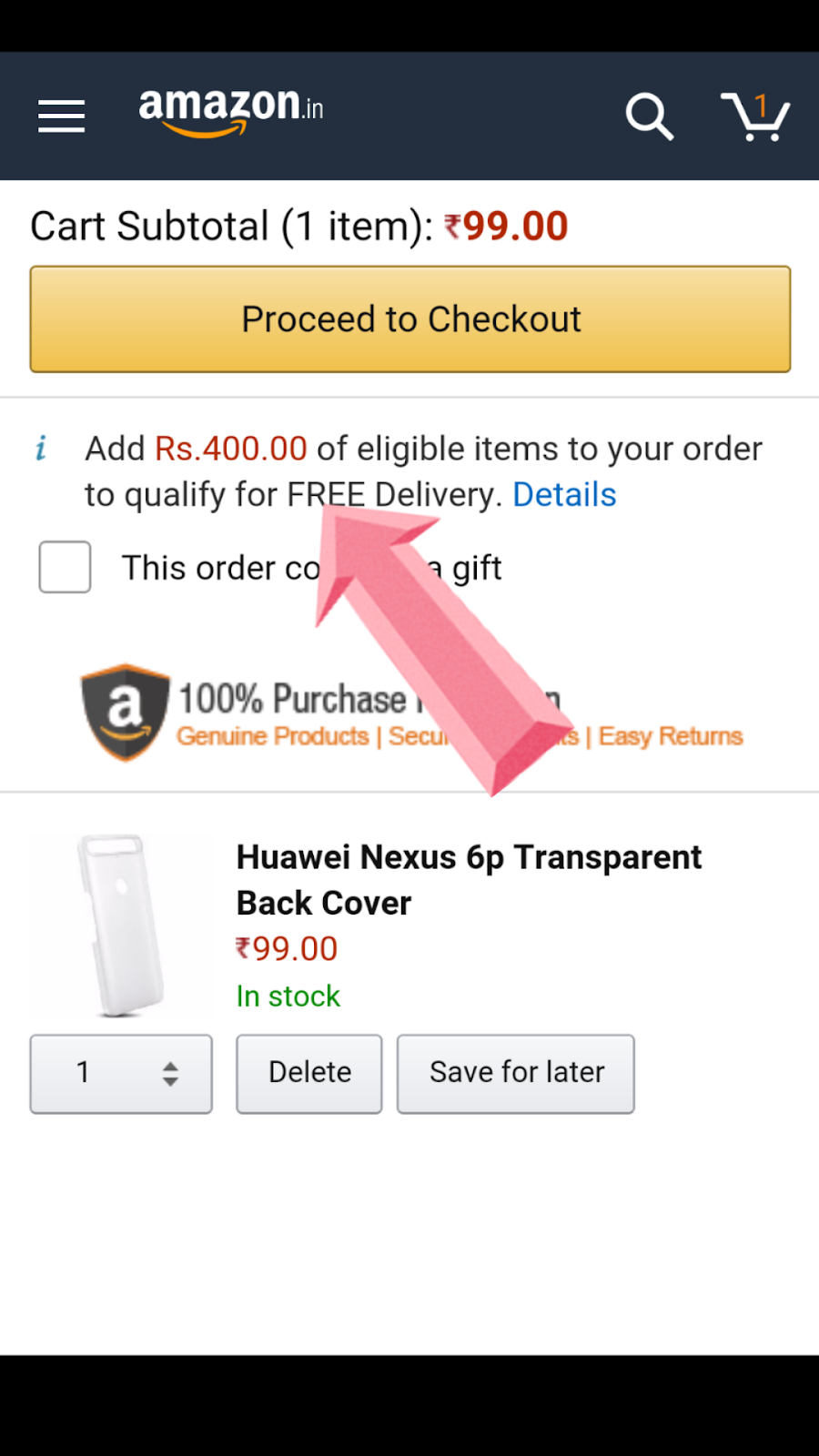
See it require Rs400 for to be free delivery eligible

  1. Add a Amazon fulfilled Book(EDIT-earlier it worked on Beauty products but Amazon seem to have removed that) that has free delivery
Note: This should work on all the Amazon fulfilled product that are eligible for free delivery

  1. That's all now go to your cart and you will see that all items are eligible for free delivery.

Earlier this also worked for the beauty products and was more useful trick. Now i would prefer to just play Rs40 extra for the delivery.

Let us know it this worked for you in the comment section down below


Wednesday, August 20, 2014

How to select specific folder to be backup on Google Plus?

Most of people like me will find this as problem. I started auto backup on my phone for my camera photos but I didn't realize that I started auto backup for all my local folder also. I wanted to backup my local folder but I don't want some folder like WhatsApp photos, screenshots to be backup. Believe me we can do that its just that Google have made it a bit hidden.


First of all make sure you have auto backup on for local folder.
  1. Open Google Plus photo app
  2. Open setting
  3. Click on Auto Backup
  4. And then on backup local folder

Secondly go to /'On Device" menu
  1. Click on the Photo option in top left corner or slide the slide out menu
  2. Click on "On Device"( you have to scroll in menu)

Lastly unchecked the folder
  1. Here you can see all your local folder
  2. Click on the cloud button side of the folder name
  3. All the cloud will of blue color
  4. Click on the cloud button to unchecked it

Now you are done only the folder you have checked will be backup now.

If you have any problem post them in comment section down below.
+1 ,Like it if it works for you share it with your Friend

Sunday, April 6, 2014

How to Set the Default Photo And Download Location to an SD Card

Most of the entry level smartphone have 8GB or 4GB out which only 2-4GB is user usable. This creates a problem for user as he have very less space to download app. As most of the app can't be shifted to SD card so very little space is available for user to use for files and photo.
This issue can be overcome using a SD card but sometime the file and photo are are still save on phone memory.
So here is way to overcome it
Default Location to SD card
This can be done in TWO ways

First method: Apps Data

This will save Apps data directly to the SDcard
  1. Open an app say for example Camera.
  2. Tap on the setting button.
  3. Scroll down the list and tap on option storage and select it to Memory card
  4. Similar method and be use to change setting on other apps.

Second method: Download Data

This will ensure all the data downloaded will go directly to the SD card
  1. Open My File from the app drawer.
  2. Click the capacitive menu button, or look three dot or four horizontal lines menu button in top right corner.
  3. From the displayed menu, tap the Settings option.
  4. In setting under the Select directories, tap the set home directory option or choose Show categories .

  5. Then tap the option you desire and select the desire folder you want to save the data.
  6. And you are done.


Note: I have use a Samsung phone to demonstrate the above process. The UI of My File may be different on phone and tablet but the app will be present in app drawer. In the mobile phones or tablets from other manufacturers, the interface may be different and different app maybe use but the process will remain same. Also make sure that SD card is properly mounted. The same processes can be use to revert back the it.

Now that you now this simple trick go and take lot of videos and photos. Thanks for reading. If facing any problem or have any suggestion leave then in comment below. If you found it helpful Like it, +1 it and do share it with your friends because
                                              A Friend In Need, Is a Friend Indeed
Thursday, March 27, 2014

How do I Play Movie With Subtitles On My Sony Bravia From USB?(SOLVED)

Hello friends,
I mainly use my TV for gaming but when I thought of watching a HD movie on it I suffered from the same problem of not been able to play a movie with subtitle on my Sony Bravia TV. I search search the web but could cony find any easy solution.

So here is an easy trick that you can use to play subtitle file on sony bravia

NOTE: That .MKV is not supported and that the support of .srt files is not a support or guaranteed even with .AVI files for Sony TVs manufactured in 2012.
I successfully tested it with .MP4 file and .srt subtitle file and it work perfectly fine.

Steps:
  1. Download the movie form the internet say Iron Man 3 put it in a folder.
  2. Download the subtitle file for Iron man 3 and put it on the same folder .To find subtitle just Google it.
  3. Make sure that you saved the subtitle file with the same name as the movie file in the same folder with the extension .srt.
  4. Name the folder same as the movie (optional but it dont work try this)
  5. Plug in the usb. Start playing the movie file.
  6. Press the green button out of the group of four coloured buttons on your sony tv remote. If the green button doesnt work, try the Green/white button next the numeral '0'.
  7. And the Final step 

Hope this will help you out. Do let us know if this work for you? If any querry leave it in comment below? Share it with you friends and family and spread the world.

Saturday, March 22, 2014

Stuck while Playing 2048 Game:Here are Some Tips and Tricks


Heya Guys,

This is the new addictive game 2048 after the infamous Flappy bird. well I can say that its pretty difficult game. But i have some tips using those you can win this game

Tips and Tricks
    1. Just move the arrow keys in UP-LEFT-DOWN-RIGHT direction. Well my score after doing this was 


Though I make some mistake while pressing keys but after some steps you can play your self. It will help.
     2.  Build the game at corner point . It can be any corner. The new tile can show up in a random spot but is exclusively a two or four tile, making building new multiples extremely easy once you have the space to do so, but awful if it shows up next to larger ones in your top row.
      3. Also you can chose a side and make all the big number on that side though this will limit the moves.
      4. Use arrow keys pattern I don't know how this work itself working It will increase the open boxes., use this in while           playing game.
          UP-DOWN-LEFT/RIGHT, LEFT-DOWN-RIGHT
This will definitely help you win the game but still luck is most important factor to decide.
Hope this will help you
Did it help you? Let us know in comment below also do post your score in comment Section.

Some Random Pics